To prepare files for printing, here are some tips even if you are not an expert with digital editing tools such as Photoshop or Illustrator.
When you upload a file, Textilfy must in principle correctly recognize the actual size at which the image is and also its resolution. This, obviously, does not always happen because there are many image editing programs, with multiple versions each, and it is difficult that even having a standard file extension and resolution the recognition of all the data in the file works automatically correctly 100% of the time.
For this reason it is so important that, before uploading the final print file, you thoroughly check what are the values that Textilfy is returning to you (what values are the ones that it is automatically measuring) and if these correspond to what you want to obtain in fabric.
Let’s do an example here by uploading a basic image with the old Textilfy logo to prepare files for printing. You can download it from here in case you want to do tests.
After selecting the type of fabric and quantity we need, we upload it directly and the following information appears:
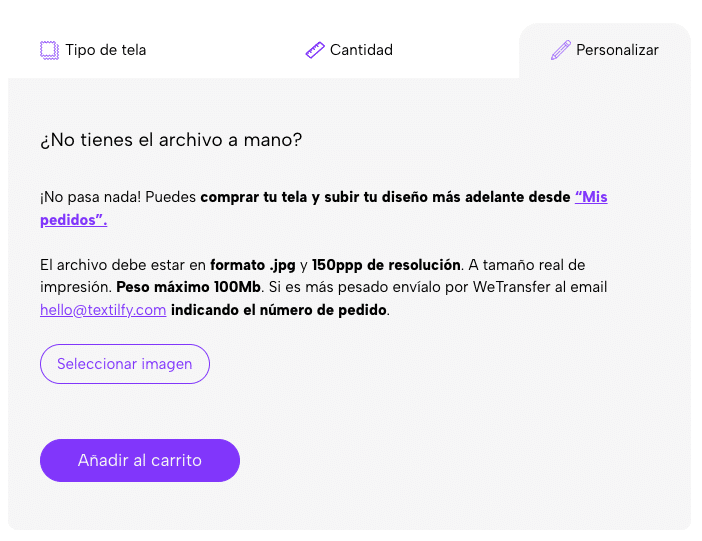
Textilfy is telling us that it has correctly recognized the image, it tells you first the name of the file and secondly its weight. Then the size in pixels and finally its dimension in centimeters at a specific resolution.
This size in centimeters and this resolution are the dimensions that will be respected when preparing the file for typewriting.
If we look at the preview that Textilfy also makes automatically:
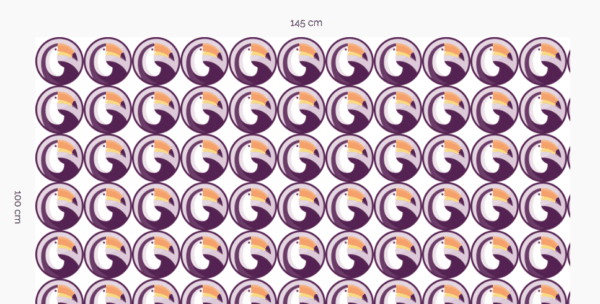
We can count that in the 145cm width of the fabric there are 11 repetitions of the logo and a little more of the number 12. If you divide 145cm by those 11 units you get just over 13 centimeters, which is what Textilfy is telling you (in text) that your file is wide.
IMPORTANT. When preparing files for printing, the preview that Textilfy makes is just that, a PREVIEW. It is usually loaded at very low resolution to do it as quickly as possible and not to overwhelm the server due to several clients loading designs simultaneously. Therefore, if you notice low file quality or strong pixelation, you should not panic as long as you have made sure that your file is of sufficient quality. That is, there are times when even with sufficient quality the file may look a little blurry or pixelated in the preview.
Let’s now open this same file in Photoshop and check its dimensions from the Image > Image Size menu…
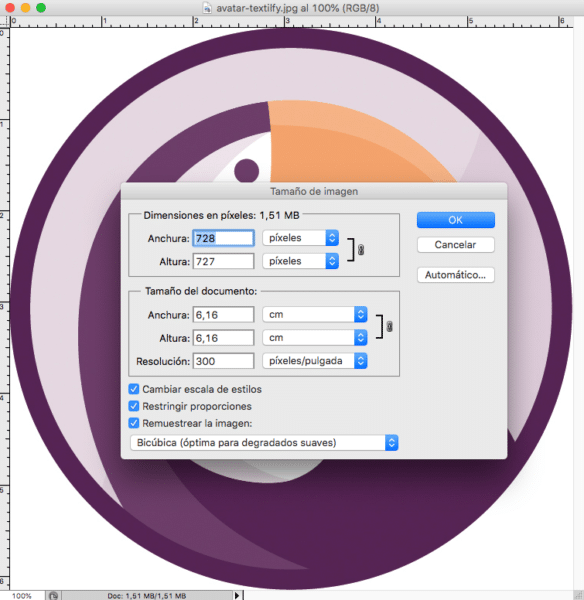
What information can we read here? That indeed the pixels of width x height coincide exactly with the automatic reading that Textilfy returns to us. But if we go a little further down, under Document Size, we see differences. Here it marks a resolution of 300dpi and dimensions of 6.16 x 6.16 cm. We can see that it is just half of what Textilfy told us because the image has just twice the resolution.
In reality, the image is exactly the same, i.e., the file itself contains exactly the same information. The difference is that Photoshop is showing it to us with 300dpi instead of 150dpi. If we do the exercise of modifying the resolution by lowering it to 150dpi and (VERY IMPORTANT) without checking the Resample image option, we get the following:
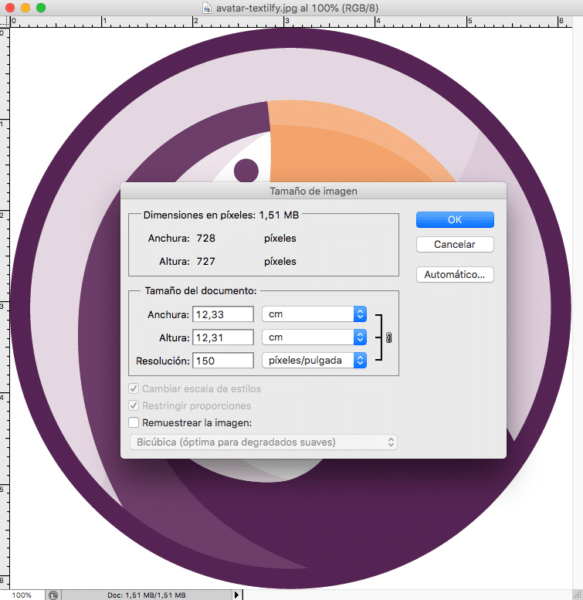
In this case it is measuring the same size as Textilfy although there is a slight difference.
If you are not very convinced about how to prepare files for printing, that the resolution/quality/size of your file is adequate, check the “File Review” option that we have incorporated into our shopping cart.
File review is an extra service that includes: checking size, resolution, and continuity of the design. It does not include the modification or correction of the original design. But you make sure that the process of preparing files for textile printing doesn’t become a problem for you.